Overview
Redact is a cloud-based redaction software that harnesses the power of AI to quickly and efficiently redact sensitive information within your media. Leveraging Head Detection, Object Detection, and Transcription engines, Redact significantly reduces the overall time and effort it takes to make your body cam footage, audio files, or surveillance footage release-ready.
Redact Homepage
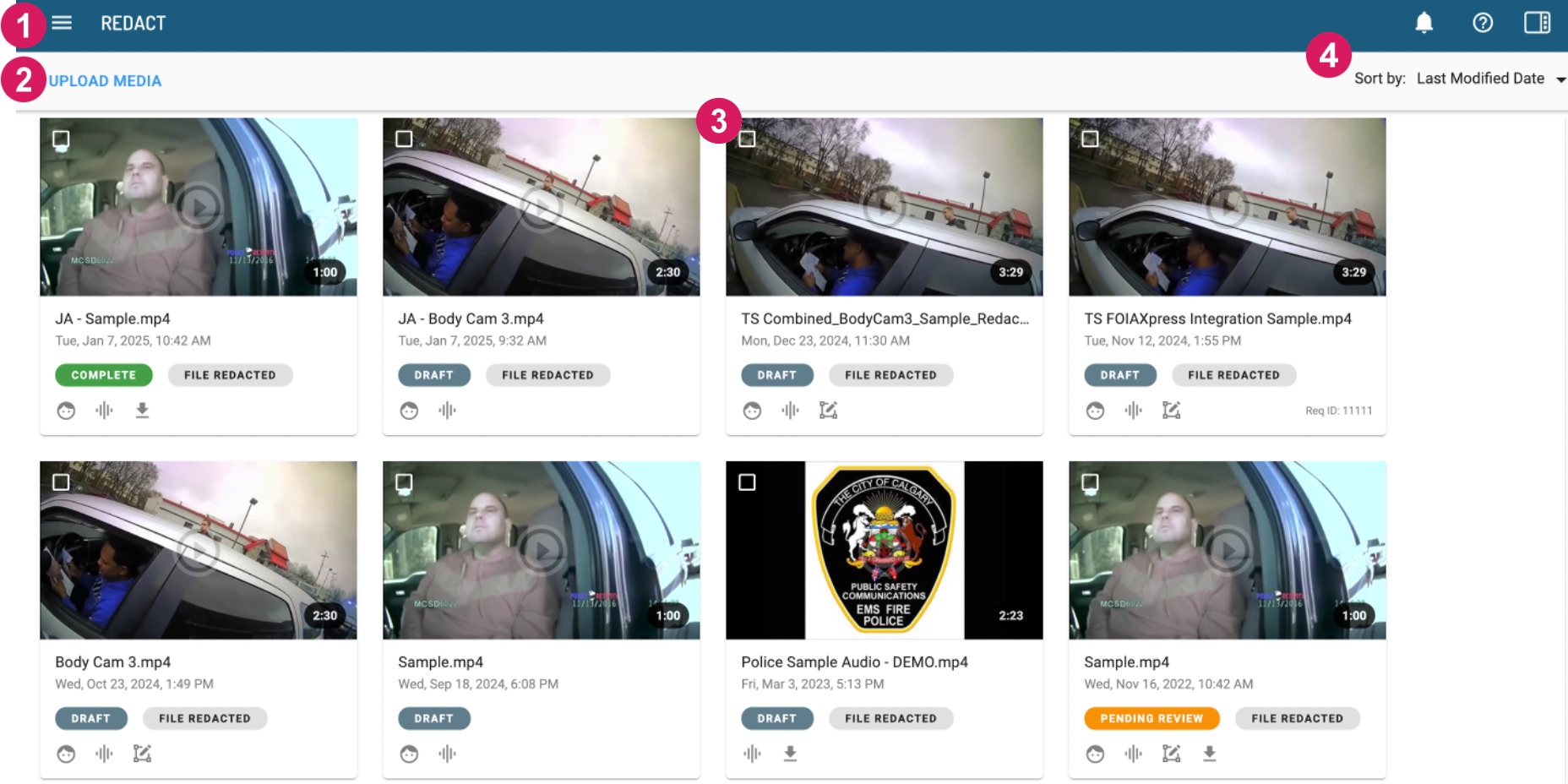
Upon logging in to your Redact account from your Chrome browser, you are directed to the Redact Homepage. This is a central repository for all media you and your team have uploaded into the application.
Note: If your homepage has a folder structure, please visit our help article Folders Homepage Overview.
 Additional Features
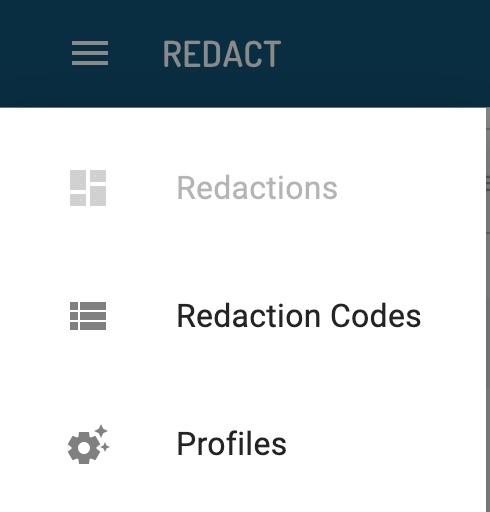
In the upper left corner, you’ll find additional Redact features by selecting the three horizontal bars or hamburger icon. Here you have the option to set up Settings Profiles and Redaction Codes.
 Upload Media
Beneath the hamburger icon, you’ll find the Upload Media button where you will upload new media and select the engine(s) you wish to process your file(s) against. For more information, please visit this help article.
 Uploaded Media Tiles
Each media file uploaded to your Redact account will display as a tile. The top half of the tile has a media player. Beneath this, the file name is displayed, followed by the date and time the file was uploaded or last modified.
You will also notice different redaction status labels assigned to each file. These labels are intended to help keep your media organized within the homepage. Note: There is no application action tied to the redaction status.
If redaction has run on this file, you will see the File Redacted label to the right of your status label.

Lastly, you will notice that each file within the homepage displays different icons and labels.

You may also see Download Symbol on older files which indicate that a user within the account has downloaded the redacted version of this file. The Download Symbol has been sunsetted, and will no longer appear on newly downloaded files.
Note: If you do not see the Head or Audio Wave icons within your media file tiles, this means you did not run any cognition on the file when uploading it into Redact. You can run Head and Object Detection and/or the Person and Object Detection and/or Transcription from your File Manager Page. Please review the articles below for more information:
 Sort By
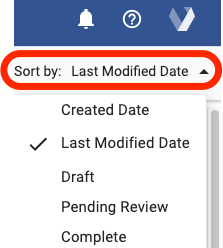
Navigate to the upper right corner of the homepage and you will see a “sort by” dropdown. From here you can sort your media by each status, the date the file was created or the date the file was last modified.
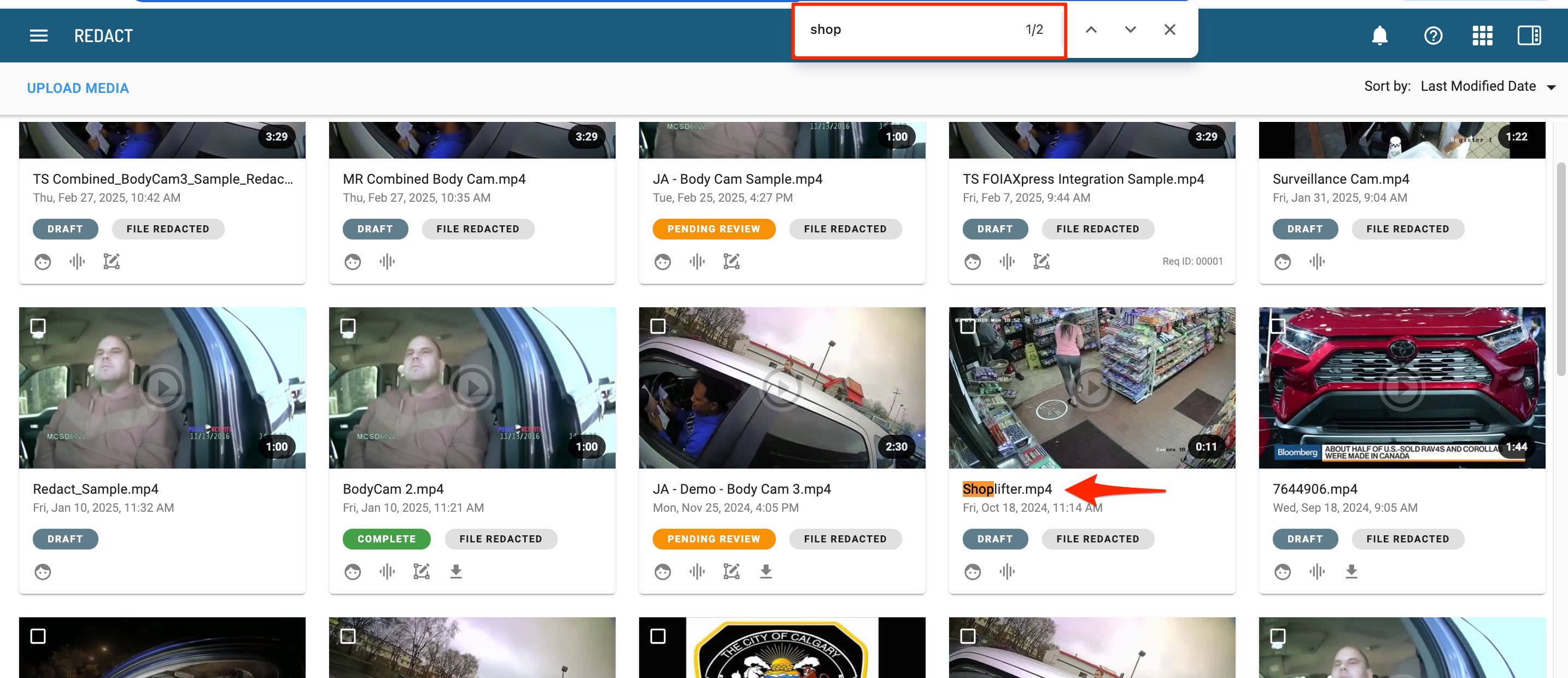
PRO TIP: You can use the keyboard shortcut Control+F on a PC or Command+F on a Mac, type in a keyword from your file name and hit Enter to search through your file names on your homepage.
If you have any additional questions on the Redact Homepage, contact our Veritone Support team at Support@veritone.com.


